On this page
Linux Fundamentals
1. [Cgroups (Control Groups)](#cgroups-control-groups)
I was trying to run k3s (lightweight Kubernetes) on a Synology NAS and immediately hit a wall: “pids cgroup controller not found.” That error led me down a rabbit hole through cgroups, container snapshotters, filesystem permissions, and ACLs — all Linux fundamentals that container runtimes depend on but rarely surface until something breaks.
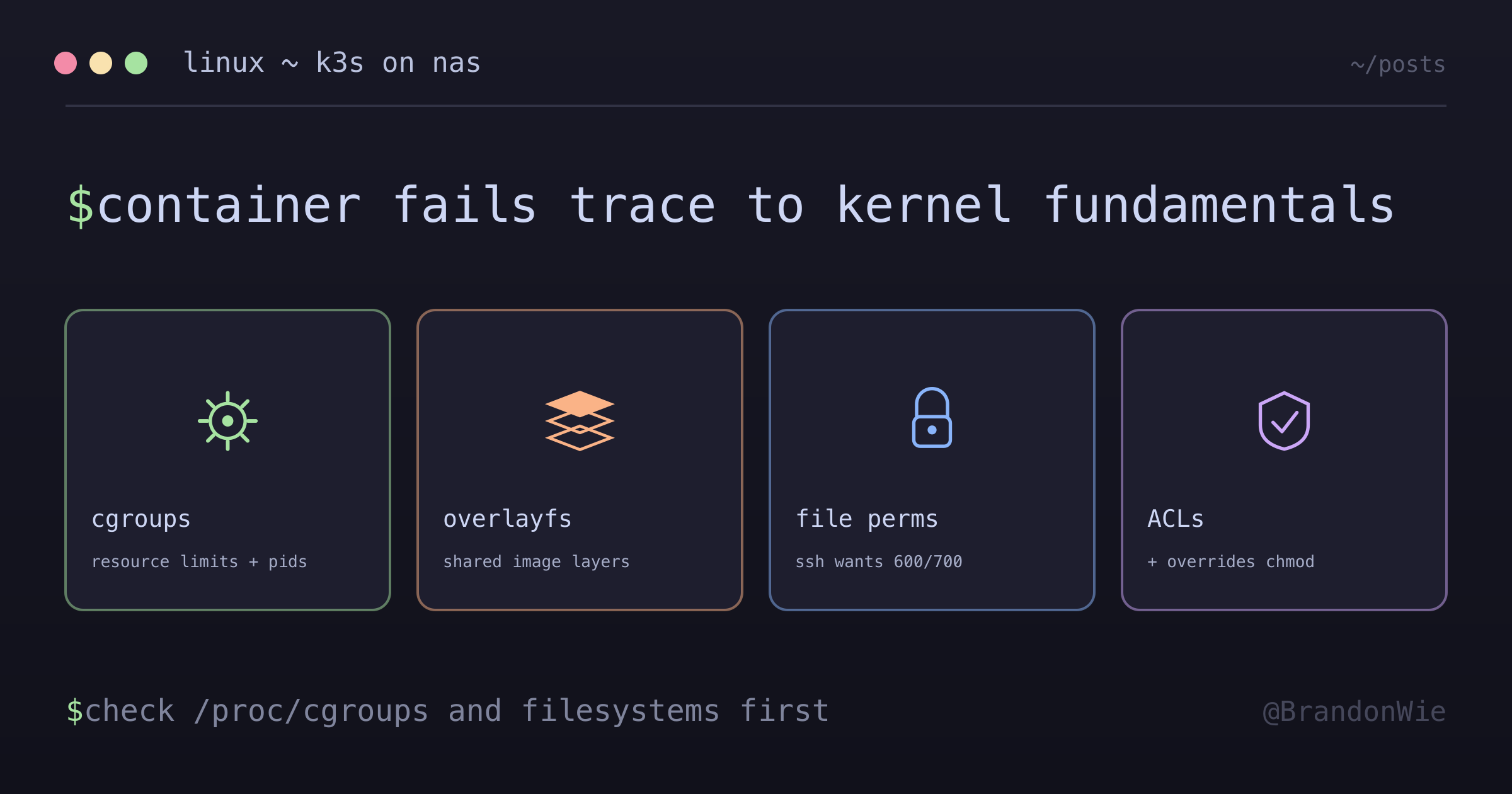
This post covers the four Linux concepts I had to understand to diagnose that failure: cgroups for resource isolation, snapshotters for container filesystem layers, filesystem permissions, and ACLs.
Cgroups (Control Groups)
What They Are
Cgroups are a Linux kernel feature that allocates, limits, and monitors system resources (CPU, memory, disk I/O, network) for groups of processes. Think of them as “resource budgets” for containers.
When you run a container, the container runtime uses cgroups to prevent that container from hogging all system resources. Without cgroups, a misbehaving container could use 100% of CPU, consume all available memory, fork-bomb the system with infinite processes, or saturate disk I/O.
How They Work
Each cgroup controller manages a specific type of resource:
| Controller | What It Limits | Example |
|---|---|---|
cpu | CPU time | “This container gets 50% CPU max” |
memory | RAM usage | “This container gets 512MB max” |
pids | Process count | “This container can spawn max 100 processes” |
blkio | Disk I/O | “This container gets 10MB/s read max” |
freezer | Pause/resume | “Freeze all processes in this container” |
These controllers are organized in a hierarchy under /sys/fs/cgroup/. Each container gets its own directory within this hierarchy, and resource limits are controlled by writing values to special files:
/sys/fs/cgroup/               (cgroup filesystem mount)
├── cpu/                       (CPU controller)
│   ├── docker/                (all Docker containers)
│   │   ├── container_abc/     (specific container)
│   │   │   ├── cpu.max        (CPU limit: "50000 100000" = 50%)
│   │   │   └── cpu.stat       (CPU usage statistics)
│   │   └── container_def/
│   └── system.slice/          (system services)
├── memory/                    (memory controller)
│   └── docker/
│       ├── container_abc/
│       │   ├── memory.max     (memory limit: "536870912" = 512MB)
│       │   └── memory.current (current usage)
│       └── ...
└── pids/                      (process count controller)
    └── docker/
        ├── container_abc/
        │   ├── pids.max       (max processes: "100")
        │   └── pids.current   (current count)
        └── ...
You can check which controllers your kernel supports with a quick command:
# View all cgroup controllers and their status
cat /proc/cgroups

# Example output:
#subsys_name    hierarchy    num_cgroups    enabled
#cpuset         9            3              1
#cpu            5            240            1
#memory         8            277            1
#pids           0            0              0    ← MISSING on Synology!
Cgroup Versions
There are two major versions, and the version your system runs matters for Kubernetes compatibility:
| Version | Features | Compatibility |
|---|---|---|
| cgroup v1 | Original, per-controller hierarchy | Legacy, being deprecated |
| cgroup v2 | Unified hierarchy, all controllers together | Modern, required by new K8s |
| Hybrid | Mix of v1 and v2 | Transitional, problematic |
The “pids cgroup controller not found” Error
This is the error that started my investigation. The Linux kernel on Synology NAS doesn’t have CONFIG_CGROUP_PIDS enabled, which means the pids controller is missing. Modern Kubernetes (1.20+) requires it to prevent fork bombs.
cat /proc/cgroups | grep pids
# No output = pids controller not available
The options are: use a different kernel (VM or different distro), use an older k3s version (pre-1.20), or use Docker Compose instead of Kubernetes.
Snapshotters
What They Are
Snapshotters are the strategy that container runtimes (like containerd) use to manage container filesystem layers. Containers share a base image (like ubuntu:22.04) but each needs its own writable layer for changes.
Think of it like a library book with transparent sticky notes: the base image is the original book (read-only, shared by everyone), the container layer is your sticky notes (writable, unique to you), and the merged view is both combined seamlessly.
Without efficient snapshotters, running 100 nginx containers would require 100 copies of nginx (~50MB each = 5GB). With snapshotters, 100 containers share ONE base image (~50MB), and only unique changes are stored per container.
How Overlayfs Works
YOUR CHANGES (Upper Layer - writable)
┌─────────────────────────────────────────┐
│  /app/myconfig.txt (new file)           │
│  /etc/nginx/nginx.conf (modified)       │
│  (stored in: /var/lib/docker/overlay2/  │
│   abc123/diff/)                         │
└─────────────────────────────────────────┘
              │
              │ "overlaid" on top using OverlayFS
              ▼
ORIGINAL IMAGE (Lower Layer - read-only)
┌─────────────────────────────────────────┐
│  nginx:latest base image                │
│  /usr/share/nginx/html/                 │
│  /etc/nginx/nginx.conf (original)       │
│  (stored once, shared by all containers)│
└─────────────────────────────────────────┘
              │
              │ Union mount creates merged view
              ▼
WHAT CONTAINER SEES (Merged View)
┌─────────────────────────────────────────┐
│  Looks like a complete filesystem       │
│  Original files + Your changes combined │
│  Container doesn't know it's layered    │
└─────────────────────────────────────────┘
Snapshotter Options
| Snapshotter | How It Works | Performance | Use Case |
|---|---|---|---|
overlayfs | Kernel-level filesystem layering | Fast | Default for most Linux |
native | Copy entire image on write | Slow | Fallback when overlayfs unavailable |
fuse-overlayfs | FUSE-based overlay emulation | Medium | Rootless containers |
zfs | ZFS copy-on-write | Fast | ZFS systems |
btrfs | Btrfs snapshots | Fast | Btrfs systems |
If you see “overlayfs: cannot mount,” your kernel doesn’t support it. Check with grep overlay /proc/filesystems. The fallback is --snapshotter=native, which works everywhere but copies the entire image on write — slower but functional.
Filesystem Permissions
Unix filesystem permissions control who can read, write, or execute files. Every file has an owner, a group, and “others” — each with their own permission set:
-rw-r--r--  1  user  group  1024  Jan 16 10:00  file.txt
│└┬┘└┬┘└┬┘
│ │  │  └── Others: r-- (read only)
│ │  └───── Group: r-- (read only)
│ └──────── Owner: rw- (read + write)
└────────── File type: - (regular file)

OCTAL NOTATION:
  r = 4   read
  w = 2   write
  x = 1   execute

  Owner: rw- = 4+2 = 6
  Group: r-- = 4   = 4
  Others: r-- = 4  = 4
  Result: 644

COMMON PERMISSIONS:
  644  -rw-r--r--  Regular files (owner writes, others read)
  755  -rwxr-xr-x  Executables/directories (owner full, others read+execute)
  700  -rwx------  Private (owner only)
  600  -rw-------  Private file (owner read/write only)
The key points to remember: SSH is extremely strict about permissions (keys must be 600, .ssh/ must be 700), directories need execute permission to enter (not just read), and default permissions come from umask (usually 022, meaning new files are 644).
ACLs (Access Control Lists)
ACLs provide more granular permission control than traditional Unix permissions. They allow you to grant different permissions to multiple specific users or groups on the same file — something traditional permissions can’t do.
Detecting ACLs
The + sign in ls -la output is your indicator:
ls -la ~/.ssh/
drwxrwxrwx+  2 user group 4096 Jan 16 10:00 .ssh/
          ^
          └── This + means ACLs override standard permissions!
Viewing and Removing ACLs
# Linux
getfacl ~/.ssh/

# Synology (custom tool)
synoacltool -get ~/.ssh/
On Synology, ACLs can override chmod. If you chmod 700 ~/.ssh but the + sign remains, ACLs are still granting wider access:
# Remove ACLs so chmod can take effect
sudo synoacltool -del ~/.ssh
sudo synoacltool -del ~/.ssh/authorized_keys

# Then set permissions
chmod 700 ~/.ssh
chmod 600 ~/.ssh/authorized_keys
This was the second gotcha I hit on Synology — SSH key authentication kept failing despite correct chmod because Synology’s ACLs were overriding the permissions.
Synology-Specific Notes
Synology DSM uses a customized Linux kernel (3.10.x based) that lacks several modern features:
| Feature | Status | Impact |
|---|---|---|
CONFIG_CGROUP_PIDS | Missing | k3s 1.20+ won’t run |
CONFIG_SECCOMP | Limited | Some security features unavailable |
| overlayfs (nested) | Limited | Can’t nest overlays in Docker |
Available controllers: cpuset, cpu, cpuacct, blkio, memory, devices, freezer
Missing controllers: pids, hugetlb, perf_event, net_cls, net_prio
This is why Synology NAS works well for Docker Compose but not for Kubernetes — Docker Compose doesn’t require the pids controller, but Kubernetes does.
Takeaway
When container infrastructure fails with kernel-level errors, the problem is usually one of these four fundamentals: cgroups (resource limits missing), snapshotters (filesystem layering unsupported), permissions (wrong mode), or ACLs (overriding permissions silently). On non-standard Linux environments like Synology, check cat /proc/cgroups and grep overlay /proc/filesystems first — they’ll tell you immediately whether your kernel supports what the container runtime needs.
References
- Linux Kernel Cgroups Documentation
- containerd Snapshotters
- OverlayFS Documentation
- k3s GitHub Issue #5080 — Synology cgroup issues