On this page
Markdownlint Conventions
7,500 markdownlint errors across 200 markdown files. The rules that mattered, the configuration that stuck, two pre-commit traps that surface only in nested scopes, a wrapped issue reference that turns into a heading, and the strict-preset migration that collapsed an 18-rule custom config into one extends + five carve-outs.
I ran markdownlint on a knowledge base with about 200 markdown files and got back 7,500 errors. Seven thousand five hundred. The repository had accumulated formatting debt over months: missing blank lines around lists, code blocks without language specifiers, duplicate headings, inconsistent table spacing. Every contributor applied their own conventions, and the result was a codebase where diffs were noisy, GitHub rendering was unpredictable, and no one could tell “correct” formatting from “works on my machine” formatting.
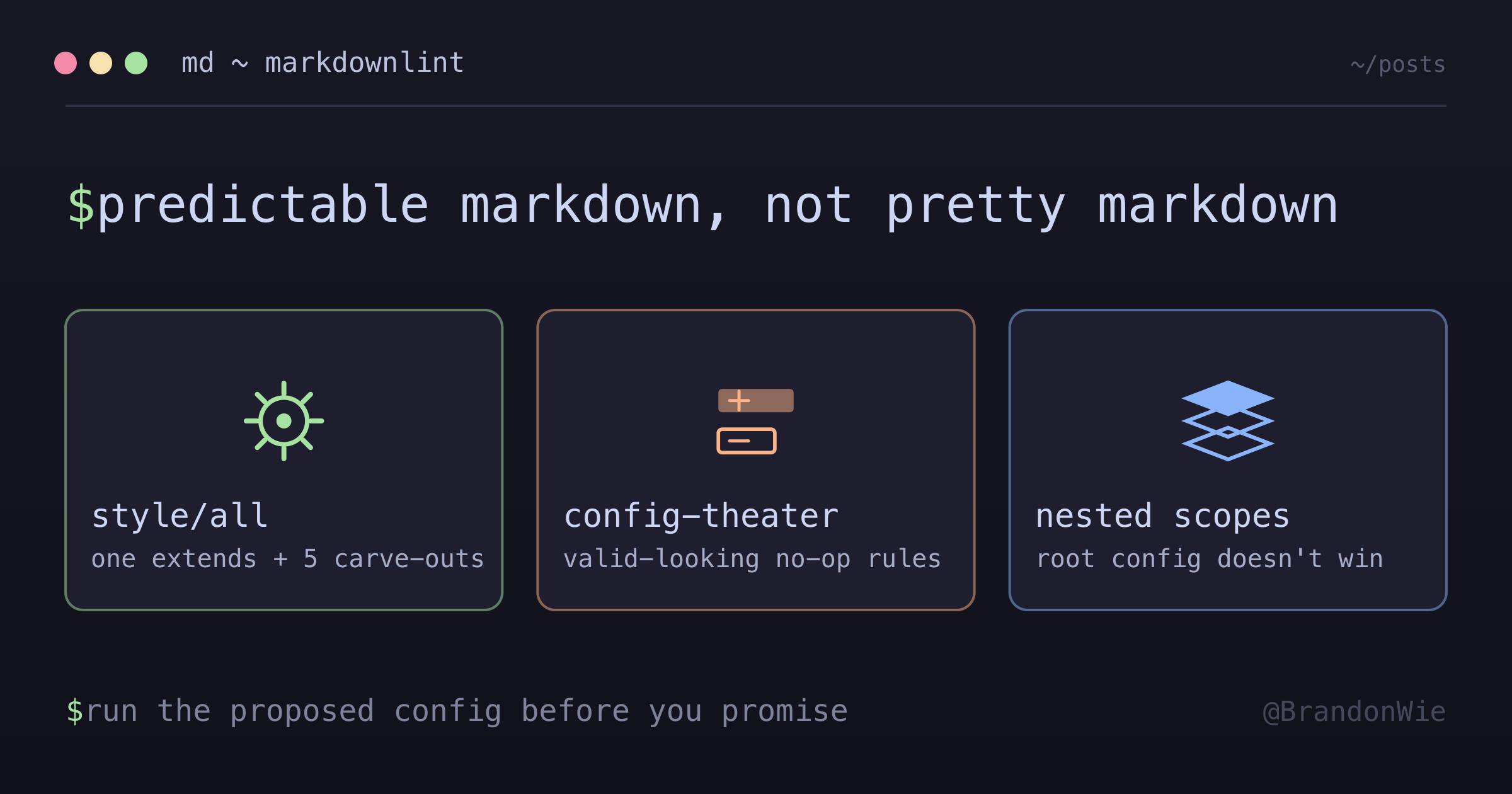
This post covers the rules that matter most, the configuration decisions I made, two non-obvious traps that show up later in nested config scopes, a third where a wrapped issue reference becomes a heading, and a follow-up migration that replaced an 18-rule custom config with a one-line extends: plus five documented carve-outs.
Why Consistent Markdown Formatting Matters
The spec allows several ways to write the same thing, and renderers disagree about the edge cases. A list without a blank line before it renders fine in VS Code’s preview but breaks in GitHub’s renderer. A code block without a language tag gets no syntax highlighting anywhere. Inconsistent table spacing produces noisy diffs where half the changes are whitespace.
These are not aesthetic complaints. They cause real problems: broken rendering on documentation sites, meaningless diffs that hide actual content changes, and cognitive overhead when reading files that follow different conventions on every page.
Markdownlint is a Node.js linter that enforces a configurable set of rules. It catches formatting issues at the source, before they reach version control.
The Rules That Matter Most
Out of markdownlint’s 50+ rules, six accounted for almost everything I actually hit.
MD032: Blank Lines Around Lists
Lists require blank lines before and after them. Without the blank lines, some renderers merge the list with surrounding text.
Wrong:
Some text before
- Item 1
- Item 2
More text after
Correct:
Some text before

- Item 1
- Item 2

More text after
This also applies to bold text followed by a list (**Header:** needs a blank line before the list), numbered lists, and nested lists. In my knowledge base, this was the second most common error because it is easy to forget the blank line when you are writing quickly.
MD040: Code Block Language Specifier
Every fenced code block must specify a language. Without it, you get no syntax highlighting and no way for tools to identify the content type.
Wrong:
```
some code here
```
Correct:
```bash
some code here
```
Common language tags: bash/sh for shell commands, yaml/yml for configuration, json for data, typescript/ts for TypeScript, python for Python, text for plain text with no highlighting, markdown for markdown examples.
When in doubt, use text. It signals intent (“I know this has no syntax highlighting”) rather than leaving the reader to wonder if you forgot.
MD024: No Duplicate Headings
Heading text should be unique within a document. Duplicate headings break anchor links and make navigation confusing.
Wrong:
## Overview
...
## Overview
Correct:
## Overview
...
## Session 2 Overview
This rule can be configured with siblings_only: true to allow duplicate headings under different parent sections. For example, multiple ### What I Did headings under different ## Session headings would be allowed. This is the configuration I recommend for knowledge bases and journals where repeated section structures are common.
MD055 and MD060: Two Table Rules That Are Easy to Conflate
Table formatting is split across two rules. Both are about pipe characters, so they blur together. An earlier version of this post had MD055’s settings printed under an MD060 heading, which is exactly the mistake to avoid.
MD055/table-pipe-style governs where the pipes are: whether a row has a leading pipe, a trailing pipe, both, or neither. As of markdownlint v0.41.1 its style values are consistent (the default, where the first table in the document sets the style for the rest), plus four explicit choices:
style value | Row shape |
|---|---|
leading_and_trailing | \| Cell \| Cell \| |
leading_only | \| Cell \| Cell |
trailing_only | Cell \| Cell \| |
no_leading_or_trailing | Cell \| Cell |
MD060/table-column-style governs padding inside the cells. It arrived later, in v0.39.0, and its value set does not overlap with MD055’s at all. The options are any (the default), aligned, compact, and tight:
style value | What it requires |
|---|---|
aligned | pipes line up vertically; cells padded out to column width |
compact | exactly one space around each cell; pipes stay ragged |
tight | no padding at all, as in \|Y\|Yes\| |
any | accept any of the three, evaluated per table |
I settled on aligned columns with leading and trailing pipes:
| Header 1 | Header 2 |
| -------- | -------- |
| Cell 1   | Cell 2   |
That was less a considered decision than a consequence of already running Prettier. Prettier’s markdown formatter emits aligned tables, so any other choice would have meant fighting the formatter on every save.
In my repository the column-style rule accounted for 3,600 of the 7,500 errors, almost half. The violations were mechanical (inconsistent padding) and auto-fixable, but the sheer volume meant I had to decide on a canonical style before running any automated fixes.
MD031: Blank Lines Around Code Fences
Fenced code blocks need blank lines before and after them, for the same rendering reasons as lists.
MD009 and MD010: Trailing Spaces and Hard Tabs
Lines should not have trailing whitespace (MD009), and indentation should use spaces instead of tabs (MD010). The standard is 2 spaces for markdown and 4 spaces for code blocks. Both belong in editor configuration rather than manual effort: set your editor to trim trailing whitespace on save and insert spaces instead of tabs.
Configuring Markdownlint
Not every rule makes sense for every project. Create a .markdownlint.json in your project root to disable or customize rules:
{
  "MD013": false,
  "MD024": {
    "siblings_only": true
  },
  "MD033": false,
  "MD041": false
}
The reasoning behind each of those:
| Rule | Setting | Reason |
|---|---|---|
| MD013 | false | Allow long prose lines (line length limit hurts readability in prose) |
| MD024 | siblings_only: true | Allow duplicate headings in different sections |
| MD033 | false | Allow inline HTML (needed for badges, details/summary) |
| MD041 | false | Allow documents without a top-level heading (frontmatter replaces it) |
MD013 (line length) deserves special mention. The default 80-character limit makes sense for code but fights against natural prose. When writing documentation, forcing line breaks mid-sentence creates awkward diffs and harder-to-read raw files. I disable it in every project.
Adopting a Strict Preset (style/all + Carve-Outs)
An 18-rule custom config like the one above accumulates entries that are no-ops, redundant, or quietly broken. After living with mine for a few months I migrated to the upstream style/all preset plus a small number of documented carve-outs. The migration collapsed sprawling per-rule configs into one extends: plus a handful of explicit exceptions, and surfaced 36 MD040 errors that had been hiding behind ineffective overrides.
The recipe
{
  "config": {
    "extends": "markdownlint/style/all",

    // Carve-outs — each documented with reason
    "MD013": false, // prettier handles wrapping
    "MD024": { "siblings_only": true }, // sibling section repetition allowed
    "MD025": { "front_matter_title": "" }, // no H1 below frontmatter
    "MD036": false, // **Bold:** patterns intentional
    "MD060": false // table column style varies
  },
  "ignores": [
    /* ... */
  ]
}
What style/all actually is
The upstream preset (style/all.json) is literally:
{
  "comment": "All rules",
  "default": true
}
So extends: "markdownlint/style/all" is equivalent to {"default": true}: every rule on with default settings. Both are valid baselines, but extends: is preferable because it documents intent, where an anonymous default: true does not.
Other built-in presets
The same style/ directory ships three more options, all subtractive (designed to be extended, not used standalone with custom rules layered on top):
| Preset | Disables | Use case |
|---|---|---|
style/all.json | nothing ({default: true}) | Strictest baseline, then carve out as needed |
style/relaxed.json | line-length, ul-indent, no-inline-html, no-bare-urls, fenced-code-language, first-line-h1, whitespace | Permissive defaults for prose-heavy GitHub READMEs |
style/prettier.json | 23 formatting rules (blanks-around-fences, code-fence-style, hr-style, line-length, list-indent, no-trailing-spaces, etc.) | Coexist with prettier; Joshua Goldberg’s recipe |
style/cirosantilli.json | personal style of Ciro Santilli | Reference only |
Run the proposed config first, then promise
When proposing a config simplification, run the proposed config FIRST against unmodified content. Don’t extrapolate from current-config output. Existing overrides may be silencing thousands of failures you’d inherit the moment you switched to “pure defaults.” On a 3B test (2026-05-01):
| Config | Failures (reported) |
|---|---|
| Existing 18-rule custom | 131 |
extends: "markdownlint/style/all" | 11,398 (MD013 alone: 10,491) |
extends: "style/all" + 5 carve-outs | 36 (MD040 only, sweepable) |
The first two should be identical if the 18 customizations were “no-op against defaults.” Instead the existing config silenced ~11,000 failures via MD013 false (line-length), MD024 siblings_only=true, and MD025 front_matter_title="". Those three overrides were carrying weight I had assumed was dead.
The workflow: write a temp config file (the filename must carry the markdownlint-cli2 prefix, e.g. pure-default.markdownlint-cli2.jsonc, because the CLI rejects arbitrary names), invoke npx markdownlint-cli2 --config <temp-file> '<glob>', group failures by MD###/rule-name, then decide which to carve out vs. fix.
The config-theater trap
An override can look like it is steering the linter while doing nothing you intended. Nothing warns you: the file parses, the run succeeds, and the config reads like configuration. Two of these were sitting in my own pre-migration config:
| Override | What it actually did | Fix |
|---|---|---|
MD060: { style: "any" } | Nothing; any is MD060’s default | Drop it; use MD060: false to actually disable the rule |
Ten MD###: true entries | Nothing; they match default: true | Drop them; rely on the preset |
The MD060 entry is the clearest case. I had written it with the comment “accept any consistent style per table,” which is a fair description of what any does. It just was not a description of anything I was changing, because any is what I would have gotten by writing nothing at all.
There is a second, nastier variant worth separating out: a value that is not recognized. I expected an unrecognized value to fall back to the rule’s default. It does not. Testing on markdownlint-cli2 v0.23.1 (markdownlint v0.41.1) against one deliberately ragged table:
MD060 config | Result |
|---|---|
{ style: "aligned" } | 6 violations |
{ style: "any" } | 1 violation (the default) |
{ style: "consistant" } | 0 violations |
consistant is a typo for a value that does not exist on this rule at all: MD060 takes aligned/any/compact/tight, while consistent belongs to MD055. The run exits clean, reports nothing, and the rule is effectively off. A redundant override merely wastes a line; an unrecognized one hands you a green build that is not checking anything.
Both share one tell, and it is cheap to check. Diff-test rule: lint with and without the override. If the failure count and distribution are identical, the override is doing nothing. If they drop to zero, be suspicious rather than pleased.
Comparison with @github/markdownlint-github
This third-party preset (built on DavidAnson’s lib) is opinionated for a different audience: accessible OSS docs with images. Composes base.js + accessibility.js + custom GH001-003 rules:
- Forces
ul-style: { style: "asterisk" }(every-bullet flagged) - Forces
no-emphasis-as-heading: true - Forces
no-duplicate-headingwithsiblings_only: false - Adds GH001 (no-default-alt-text), GH002 (no-generic-link-text), GH003 (no-empty-alt-text)
- Requires
.markdownlint-cli2.mjs(function-based config) + npm install of@github/markdownlint-github+markdownlint-cli2-formatter-pretty
Skip unless: publishing public OSS docs with images where accessibility enforcement matters. For prose-heavy private knowledge bases, the migration cost (estimated thousands of rewrite errors on 3B’s content) outweighs the benefit.
Scope Warning: Root Config Doesn’t Always Win
A subtle one I learned later: disabling a rule at the project root does NOT propagate into nested config scopes. .claude/skills/**, .codex/skills/**, and other tool-managed directories are routinely linted under their own .markdownlint.json (or markdownlint-cli2 glob filter) and may keep MD033 enabled even when the repo root disables it.
The next two sections describe two specific traps that surface from this scoping behavior. Both ate commits before I understood why root-level “I disabled that rule” wasn’t enough.
MD033 Pitfall: CJK Text and Angle-Bracket Placeholders
MD033/no-inline-html flags <word> patterns as HTML elements. The trap is that markdownlint’s HTML detector does not require the placeholder to be a real HTML element. Any <identifier> anywhere in prose triggers the rule, including inside CJK text where the angle brackets are clearly being used as documentation placeholder syntax.
<!-- Both flagged with MD033/no-inline-html [Element: id] / [Element: choice] -->

투표하고 싶다고 하면 node ~/.config/ainc/anc-hook.js vote <id> "<choice>"
node ~/.config/ainc/anc-hook.js profile edit <필드> "<값>"
node ~/.config/ainc/anc-hook.js suggest "<내용>"
Fix: wrap the CLI snippet in inline backticks so the angle brackets render as code, not HTML. The visual semantics (“this is a placeholder you replace”) survive the change.
투표하고 싶다고 하면 `node ~/.config/ainc/anc-hook.js vote <id> "<choice>"`
`node ~/.config/ainc/anc-hook.js profile edit <필드> "<값>"`
`node ~/.config/ainc/anc-hook.js suggest "<내용>"`
The same rule reaches into table cells, and escaping your way out does not work. Escaping the backticks so the reader sees them literally turns the cell back into prose, which means the bracketed token is an element again:
Wrong:
| Token       | Meaning              |
| ----------- | -------------------- |
| `<type>`  | the commit type      |
| `<sev>`   | the severity level   |
Correct:
| Token  | Meaning            |
| ------ | ------------------ |
| `type` | the commit type    |
| `sev`  | the severity level |
You have two cheap ways out. Drop the brackets and name the token (type, sev), or keep a real code span instead of escaped backticks. Escaped backticks leave the brackets live, so that combination still fails.
Why this surprises:
- Korean (or any non-Latin script) sentences feel “obviously prose” to the reader, so the angle bracket placeholder visually looks safe.
- CJK characters inside the brackets (
<필드>,<내용>) feel even less HTML-like than<id>does, but markdownlint’s lexer treats both the same. - The trap usually surfaces only in nested scopes (skills directories, plugin packages) where MD033 is still enabled, leading to the wrong mental model: “but I disabled MD033 globally.”
*.me.md Pre-Commit Trap on Folder Rename
Pre-commit lint sees folder renames as “newly added” files. If the renamed folder contains human-authored .me.md files (Notion exports, brain dumps, PRD seeds) with inline HTML (<aside>, <details>) or duplicate headings, markdownlint blocks the commit even though the content is unchanged from its prior path.
A reproduction from late April: renaming a task folder from actives/onboarding/ to actives/frontend-onboarding/ triggered pre-commit lint on notion-requirements.me.md (a Notion export with inline <aside> HTML and duplicate Korean headings). lint-staged saw the file as “newly added” even though its content was unchanged.
git add actives/onboarding/ actives/frontend-onboarding/
git commit
# → markdownlint-cli2 fails on notion-requirements.me.md:
#   MD041 first-line-heading
#   MD033 inline HTML [Element: aside]  (×3)
#   MD024 duplicate headings (×3)
Fix: add **/*.me.md to the ignores array in .markdownlint-cli2.jsonc. .me.md is a convention for human-authored seed files that AI/tooling must not modify. Lint must not gate commits on their content.
"ignores": [
  // ...
  "**/*.me.md"
]
Why this surprises:
- The folder rename intuitively feels like a “no-content-change” operation; lint shouldn’t have an opinion. lint-staged disagrees, and lints whatever is staged, including renamed paths.
- The
.me.mdextension already signals “do not modify” semantically, but markdownlint has no notion of that convention. - A standalone
notion-requirements.me.mdfile would have been blocked on initial commit too. The rename just exposed the latent miss.
A Wrapped Issue Reference Turns Into an H1
This one has nothing to do with nested scopes, but it belongs with the traps for the same reason: the offending character came from the formatter rather than from anything I typed.
Prettier wraps markdown prose at 80 columns. Most of the time you never think about where the break lands. But when a sentence mentions an issue by number and the wrap puts that reference at the start of the continuation line, markdownlint reads the leading hash as an ATX heading marker. Three rules fire on the same line at once: MD025 (multiple top-level headings), MD022 (blank lines around headings), and MD026 (trailing punctuation in heading).
Wrong:
The guard exists because the rules were never injected automatically, which
#396 fixed by loading them at session start.
Correct:
The guard exists because the rules were never injected automatically, which
issue 396 fixed by loading them at session start.
The reliable fix is to write “issue 396” in prose and keep the hash out of the sentence entirely. Keeping the hash off the line start also works, but that leans on a wrap position any later edit will move, so the error comes back the next time the sentence grows a word.
VS Code Integration
Install the markdownlint extension (DavidAnson.vscode-markdownlint) to see violations inline as you type.
Add this to your VS Code settings.json:
{
  "markdownlint.config": {
    "MD013": false,
    "MD024": { "siblings_only": true }
  },
  "editor.formatOnSave": true,
  "[markdown]": {
    "editor.wordWrap": "on",
    "editor.quickSuggestions": false
  }
}
The quickSuggestions: false setting for markdown files prevents the autocomplete popup from appearing while you write prose, which is distracting. Word wrap keeps long lines visible without horizontal scrolling.
Quick Reference
The errors I looked up most often, and the fix for each:
| Issue | Rule | Fix |
|---|---|---|
| List missing blank line | MD032 | Add blank line before/after list |
| Code block no language | MD040 | Add language after opening ``` |
| Duplicate heading | MD024 | Make heading text unique |
| Missing leading/trailing pipe | MD055 | Pipe at the start and end of every row |
| Inconsistent cell padding | MD060 | Pick one column style (aligned) and hold to it |
| No blank around code | MD031 | Add blank line before/after fence |
| Trailing spaces | MD009 | Configure editor to trim |
| Hard tabs | MD010 | Use spaces (2 for md, 4 for code) |
<id> flagged as HTML | MD033 | Wrap in backticks: `<id>` |
.me.md blocking commits | n/a | Add **/*.me.md to ignores |
Takeaway
What markdownlint bought me was predictability: the same rendering on every platform, diffs where the only changes are content changes, and conventions that survive contact with other contributors. The setup cost is one configuration file and a one-time cleanup. Going from 7,500 errors to zero took an afternoon of automated fixes, and the VS Code extension plus CI kept the count there afterward. The later style/all migration replaced that sprawling 18-rule config with one extends: line and five documented carve-outs, and it showed me that the ~11,000 failures my old overrides suppressed were ones I genuinely wanted suppressed. The repository has stayed clean since. The one caveat is that nested config scopes follow their own rules, so the first commit into a new tool-managed directory is still worth lint-checking by hand.