On this page
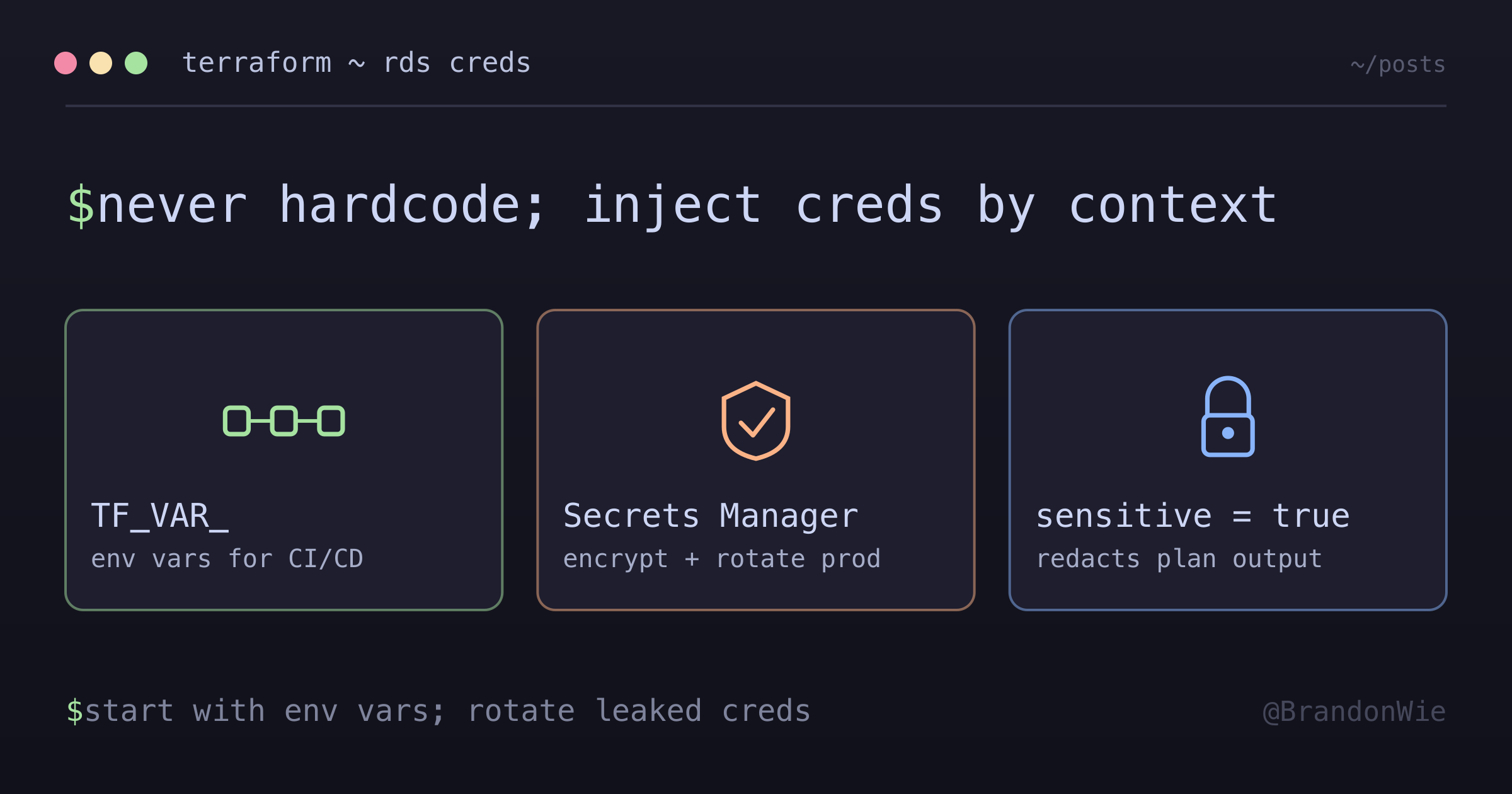
Terraform RDS Credentials Management
Managing RDS credentials securely using variables instead of hardcoding.
Run git log -p over an old Terraform repository and there is a decent chance a database password shows up in plaintext inside some main.tf. Deleting it in a later commit does not undo that. Git never forgets: the value stays in history, readable by anyone who can clone the repo. And unless somebody rotated the credential, the password in that old commit is still the password.
That is the failure mode Terraform’s variable handling exists to prevent. The fix is not complicated — Terraform has several built-in mechanisms for handling sensitive values — but you need to pick the right one for your situation.
The Four Methods
There are four ways to pass RDS credentials to Terraform without hardcoding them. Each suits a different workflow.
Method 1: Environment Variables (Best for CI/CD)
Terraform automatically reads any environment variable prefixed with TF_VAR_ and maps it to the corresponding Terraform variable. Set the variables in your shell or CI/CD pipeline before running Terraform commands.
export TF_VAR_rds_master_username="postgres"
export TF_VAR_rds_master_password="your-password"

terraform plan
terraform apply
This is the recommended approach for CI/CD pipelines. GitHub Actions, GitLab CI, and AWS CodeBuild all support injecting secrets as environment variables. The credentials never touch disk, never appear in Terraform files, and are scoped to the execution environment.
The naming convention is strict: TF_VAR_ followed by the exact variable name from your variables.tf. For a variable named rds_master_password, the environment variable has to be TF_VAR_rds_master_password. A mismatched suffix does not raise an error — Terraform simply treats the variable as unset and falls back to its default, or prompts for it.
Method 2: terraform.tfvars (Best for Local Development)
Create a terraform.tfvars file alongside your .tf files. Terraform loads this file automatically during plan and apply.
rds_master_username = "postgres"
rds_master_password = "your-password"
This is convenient for local development because you set it once and forget it. But the file contains secrets in plaintext, so it must be in .gitignore. Every developer on the team needs their own copy, distributed through a secure channel (password manager, encrypted Slack message, etc.).
Auto-loading covers more filenames than the obvious one. Terraform picks up terraform.tfvars, terraform.tfvars.json, and anything ending in .auto.tfvars or .auto.tfvars.json. Any other name — prod.tfvars, say — needs the explicit flag:
terraform apply -var-file="prod.tfvars"Precedence matters more here than it first looks. Terraform’s documented order, lowest priority to highest, is: the variable’s default, environment variables, terraform.tfvars, terraform.tfvars.json, *.auto.tfvars files in lexical order, then -var and -var-file on the command line. Environment variables sit near the bottom, so a stray terraform.tfvars left in the working directory silently overrides the TF_VAR_ values a CI pipeline injected.
Method 3: Command Line Variables (Best for One-Off Runs)
Pass variables directly on the command line:
terraform apply
  -var="rds_master_username=postgres"
  -var="rds_master_password=your-password"
This works for quick, one-off operations but has a significant drawback: the values appear in your shell history. On a shared server or a CI runner that logs commands, this is a security risk. Use this method only on your personal machine for ephemeral operations, and clear your shell history afterward.
Method 4: AWS Secrets Manager (Best for Production)
For production environments, the gold standard is storing credentials in AWS Secrets Manager and having Terraform read them at plan/apply time.
data "aws_secretsmanager_secret_version" "rds_credentials" {
  secret_id = "my-app/prod"
}

locals {
  rds_creds = jsondecode(data.aws_secretsmanager_secret_version.rds_credentials.secret_string)
}

# Usage:
# master_username = local.rds_creds.DB_USERNAME
# master_password = local.rds_creds.DB_PASSWORD
This approach keeps credentials entirely outside Terraform’s configuration and state files. The secret is managed in AWS, which provides encryption at rest, access logging via CloudTrail, and automatic rotation if you configure it. Terraform reads the secret value at runtime through a data block, so the credentials never need to exist as environment variables or files on the machine running Terraform.
The trade-off is added complexity. Someone needs to create and manage the secret in AWS Secrets Manager before Terraform can reference it. This creates a chicken-and-egg problem for initial setup: you need the secret to exist before Terraform can use it, but you might want Terraform to manage everything. The common solution is to create the initial secret manually or with a separate bootstrap Terraform configuration.
Here is how the four methods compare:
| Method | Security | Convenience | Best For |
|---|---|---|---|
| Environment vars | Good | Medium | CI/CD pipelines |
| terraform.tfvars | Medium | High | Local dev |
| Command line | Low | Low | One-off runs |
| AWS Secrets Manager | Excellent | Low | Production |
Variable Configuration
Regardless of which method you use to supply the values, you need corresponding variable declarations in variables.tf. The sensitive = true flag is critical — it tells Terraform to keep the value out of CLI output, plan diffs included.
# variables.tf
variable "rds_master_username" {
  description = "RDS master username"
  type        = string
  sensitive   = true
}

variable "rds_master_password" {
  description = "RDS master password"
  type        = string
  sensitive   = true
}
Without sensitive = true, running terraform plan would print the password in the terminal output. With it, you see:
# Verify plan (password shows as "sensitive value")
export TF_VAR_rds_master_password="test"
terraform plan

# Output shows:
# ~ master_password = (sensitive value)
The redaction applies wherever Terraform displays values: plan output, terraform show, and state representations printed to the user. The value is still written to the state file itself — sensitive = true controls display, not storage, and Terraform’s docs say so plainly. A local state file is plaintext, secrets included. If the state needs to be encrypted at rest, that comes from the backend: S3 with encryption enabled, GCS with customer-managed keys, HCP Terraform.
Security Best Practices
Five rules for keeping RDS credentials out of trouble:
Never commit credentials to the repository. Not in
.tffiles, not in.tfvars, not in comments, not in example files. Once a secret enters Git history, consider it compromised.Use environment variables in CI/CD pipelines. They are the cleanest injection method — no files to manage, no command-line arguments to leak into logs.
Mark variables as sensitive with
sensitive = truein every variable that holds a credential. This is a one-line change that prevents accidental exposure in terminal output.Add terraform.tfvars to .gitignore before creating the file. Adding it after means the file already exists in Git history even if you remove it later.
Use AWS Secrets Manager for production. Environment variables are fine for CI/CD, but Secrets Manager adds encryption, access logging, and rotation capabilities that environment variables cannot provide.
Practical Takeaway
The right method depends on where Terraform runs. For local development, a .tfvars file in .gitignore is the path of least resistance. For CI/CD, environment variables keep secrets out of files entirely. For production, AWS Secrets Manager provides the strongest guarantees.
Whatever method you choose, the sensitive = true flag on your variable declarations is non-negotiable. It costs nothing and prevents the most common credential leak vector: someone running terraform plan in a shared terminal or CI log and the password appearing in plaintext.
Start with environment variables. Graduate to Secrets Manager when your team or compliance requirements demand it. And if you find hardcoded credentials in an existing Terraform repo, rotate them immediately — removing them from the current code does not remove them from Git history.