On this page
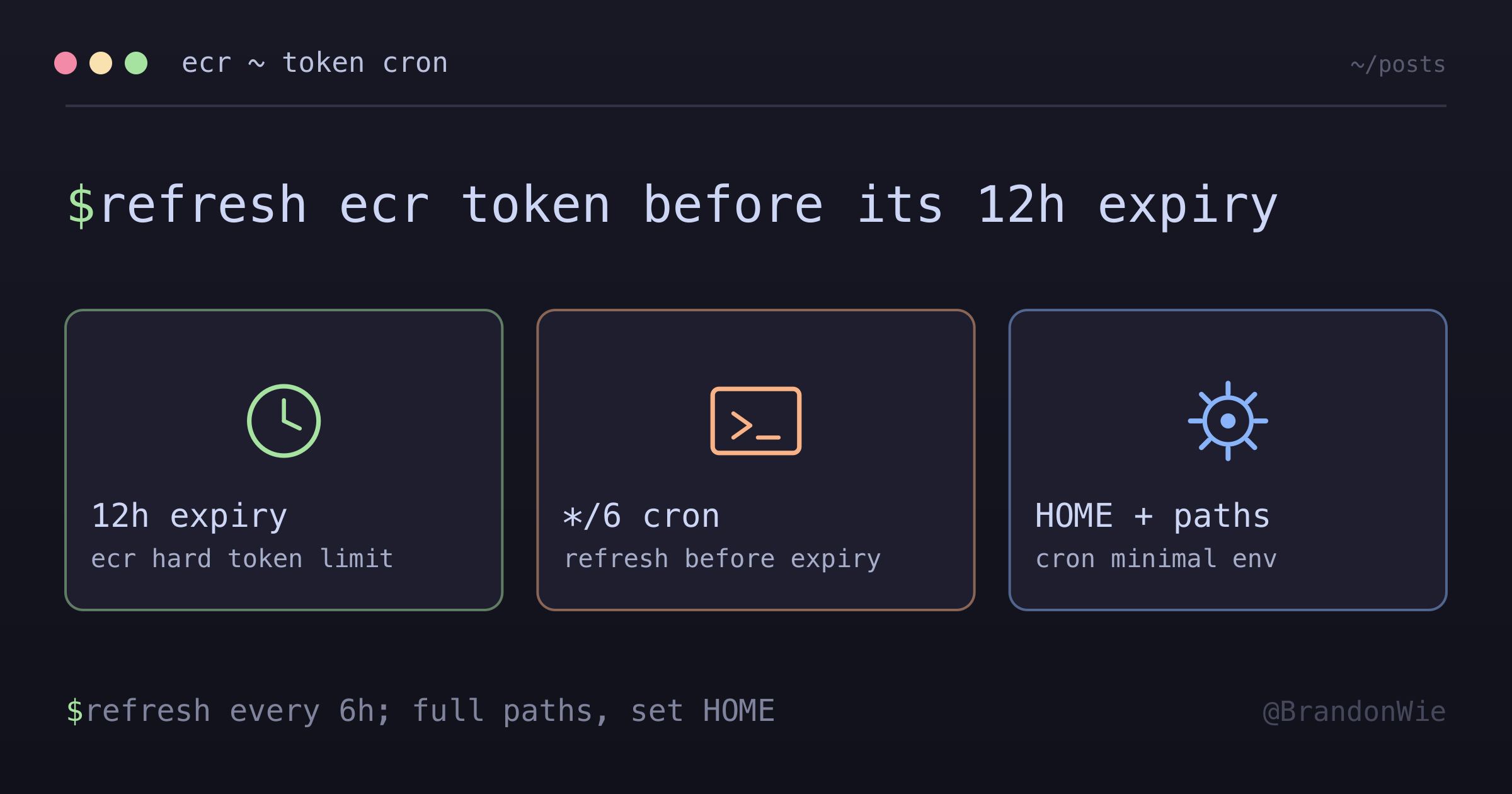
ECR Token Refresh Cron
AWS ECR authentication tokens expire after 12 hours. For long-running Docker hosts, a cron job refreshing every 6 hours keeps `docker pull` working.
An Airflow worker host I set up ran fine for the first 12 hours. After that, DockerOperator tasks started failing with “authorization token has expired.” The host had authenticated with ECR at startup, but the token expired before the next DAG run pulled a fresh image.
AWS ECR authentication tokens have a hard 12-hour expiry. If your Docker host runs longer than that — which most production hosts do — you need automatic token refresh. A cron job is the simplest solution.
The Problem
The failure pattern is predictable once you understand it:
- ECR tokens expire after 12 hours (AWS-imposed limit)
- Docker containers typically log in to ECR once at startup
- Any
docker pullafter 12 hours fails with “authorization token has expired” - The timing makes it intermittent — DAGs that run during the first 12 hours work fine, then fail overnight
The Fix
Set up a cron job that refreshes the ECR token every 6 hours — well before the 12-hour expiry:
# Cron entry (runs every 6 hours)
0 */6 * * * HOME=/home/ec2-user /usr/bin/aws ecr get-login-password --region ap-northeast-2 | /usr/bin/docker login --username AWS --password-stdin <ECR_REGISTRY> >> /var/log/ecr-refresh.log 2>&1
A few details about this cron entry that matter:
Full paths are required. Cron runs with a minimal PATH that may not include /usr/local/bin. Using /usr/bin/aws and /usr/bin/docker ensures the commands are found regardless of the cron environment.
HOME must be set. The AWS CLI needs HOME to locate credentials in ~/.aws/. Cron doesn’t set HOME by default, so the AWS CLI can’t find its configuration without this.
Logging to a file. Redirecting to /var/log/ecr-refresh.log gives you an audit trail. When something goes wrong, you can check whether the refresh ran and what it returned.
Amazon Linux 2023 Setup
On Amazon Linux 2023, cronie isn’t installed by default — a change from AL2:
# Install cronie (not included by default)
sudo yum install -y cronie

# Enable and start
sudo systemctl enable crond
sudo systemctl start crond

# Install cron for specific user
sudo -u ec2-user crontab -e
Where to Set This Up
Install the cron in two places so it survives instance replacement:
- The deployment job — whatever pipeline step re-provisions the host should re-install the cron, so a replaced instance gets it back automatically.
- The bootstrap script — install it from EC2 user-data as well, so the refresh is active from first boot instead of waiting for the next deploy.
Troubleshooting
# Check cron is running
systemctl status crond

# View cron logs
cat /var/log/ecr-refresh.log

# Test manual refresh
aws ecr get-login-password --region ap-northeast-2 | docker login --username AWS --password-stdin <ECR_REGISTRY>

# Verify current login
cat ~/.docker/config.json
Common Pitfalls
| Issue | Solution |
|---|---|
| Cron installed for the wrong user | Use sudo -u ec2-user crontab |
| Quoting mangled when installing the crontab remotely (AWS SSM Run Command) | Write the entry to a temp file and install from that |
| cronie not installed | yum install -y cronie on AL2023 |
A Better Alternative Exists
While the cron approach works, it has a race condition: if a Docker pull happens during the brief window between token expiry and the next cron execution, it still fails. The ECR Credential Helper eliminates this entirely by fetching fresh tokens on-demand — no cron, no expiry window, no maintenance.
Takeaway
ECR tokens expire after 12 hours. For long-running Docker hosts, a cron job refreshing every 6 hours prevents authentication failures. Use full paths in the cron entry, set HOME for AWS CLI, and install cronie on Amazon Linux 2023. For a zero-maintenance solution, consider the ECR Credential Helper instead — it fetches tokens on-demand and eliminates the refresh window entirely.